
How Checkout works
Checkout collects the payment on a page Flutterwave hosts:
- Your server calls the create payment endpoint with the amount, currency, and customer.
- Flutterwave returns a link to a payment page. Redirect your customer to that link.
- After the customer pays, or cancels, Flutterwave redirects them back to your site.
Set the payment details
First, you need to create the payment details for the transaction. Here is a list of the parameters you'll need:
| Parameters | Definition |
|---|---|
| tx_ref | A reference code you'll generate to identify this transaction. This must be unique for every transaction. |
| amount | The amount to charge the customer. |
| currency | The currency to charge in. If you don't specify a value, we'll assume "NGN". |
| redirect_url | The URL to redirect the customer to after payment is done. |
| customer | An object containing the customer details. An email is required, and you can also pass a name and phonenumber. |
| session_duration (optional) | The duration (minutes) that the session should remain valid for. The maximum possible value is 1440 minutes (24 hours). |
| max_retry_attempt (optional) | This allows you to set the maximum number of times that a customer can retry after a failed transaction before the checkout is closed. |
| customizations (optional) | An object containing options to customize the look of the payment modal. You can set a title, logo, and description. |
| meta (optional) | An object containing any extra information you'd like to store alongside the transaction e.g {consumer_id: 23, consumer_mac: '92a3-912ba-1192a'}. |
| payment_plan (optional) | The payment plan ID (for when you're collecting a recurring payment). |
| subaccounts (optional) | An array of objects containing the subaccount IDs to split the payment into. See split payments for more on this. |
| payment_options (optional) | The payment options to be displayed. See payment methods. |
Payment Options
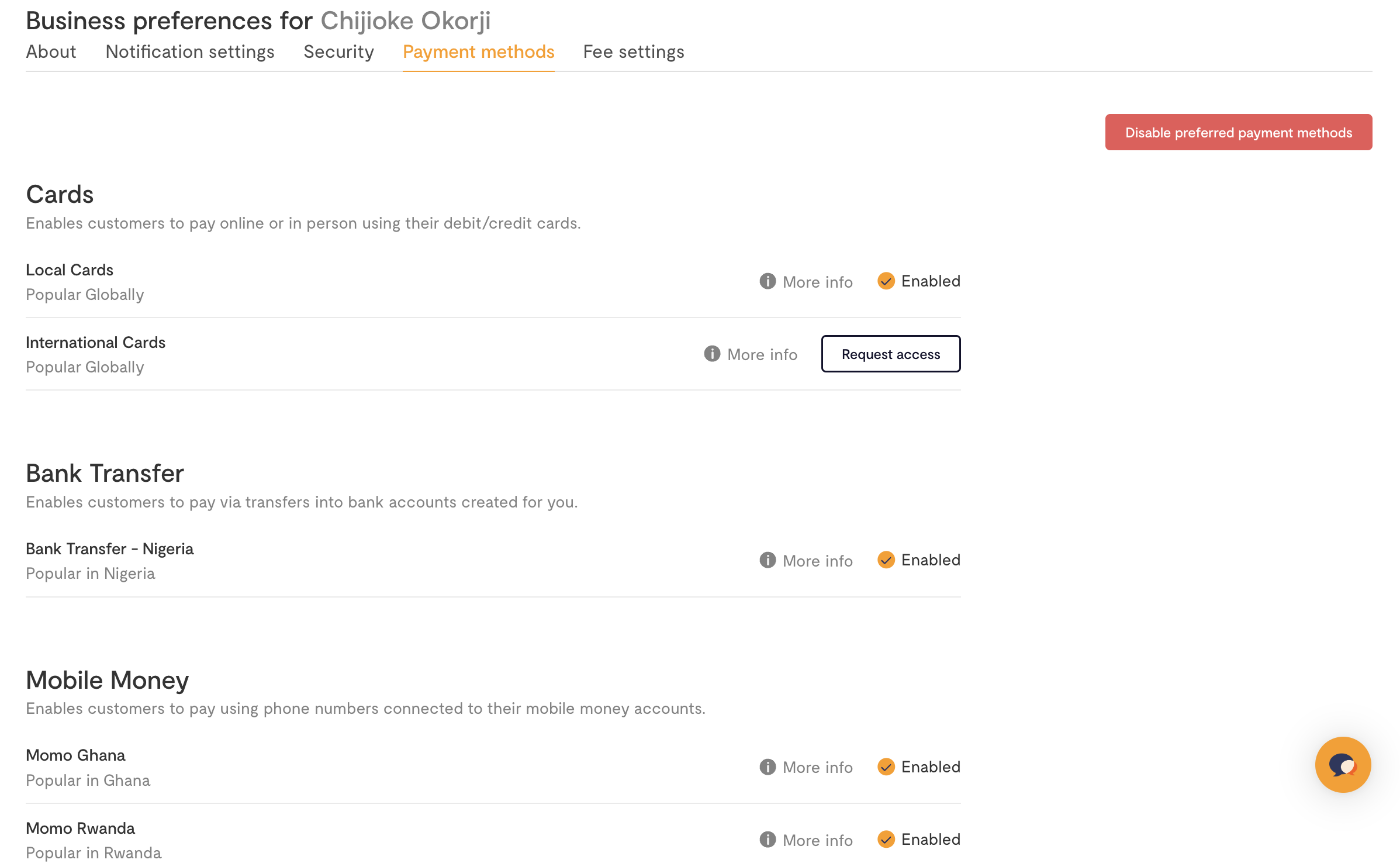
The payment_options field works only if Disable preferred payment methods is turned off in your Business preference settings on the Dashboard.
Transaction Integrity
To ensure the security of payments on the client side, you can optionally use the checksum feature.
To utilize it when initiating the charge, you need to include a field called payload_hash in the request payload. This is a hashed value created by encrypting some immutable values in your request.
The hash is computed at runtime, and compared to the value that has been passed in your request to ensure that the payment is secure.
Get a payment link
Call the API with those details. Authorize the request with your secret key. Here is an example in Node.js:
Javascript
const axios = require('axios');

try {
	const response = await axios.post(
		'https://api.flutterwave.com/v3/payments',
		{
			tx_ref: 'UNIQUE_TRANSACTION_REFERENCE',
			amount: '7500',
			currency: 'NGN',
			redirect_url: 'https://example_company.com/success',
			customer: {
				email: '[email protected]',
				name: 'Flutterwave Developers',
				phonenumber: '09012345678',
			},
			customizations: {
				title: 'Flutterwave Standard Payment',
			},
		},
		{
			headers: {
				Authorization: `Bearer ${process.env.FLW_SECRET_KEY}`,
				'Content-Type': 'application/json',
			},
		}
	);
} catch (err) {
	console.error(err.code);
	console.error(err.response.data);
}
And you'll get a response like this:
Javascript
{
	"status": "success",
	"message": "Hosted Link",
	"data": {
		"link": "https://checkout.flutterwave.com/v3/hosted/pay/flwlnk-01hynrt7cd1fpm6gtef6khn93g"
	}
}
Redirect your customer
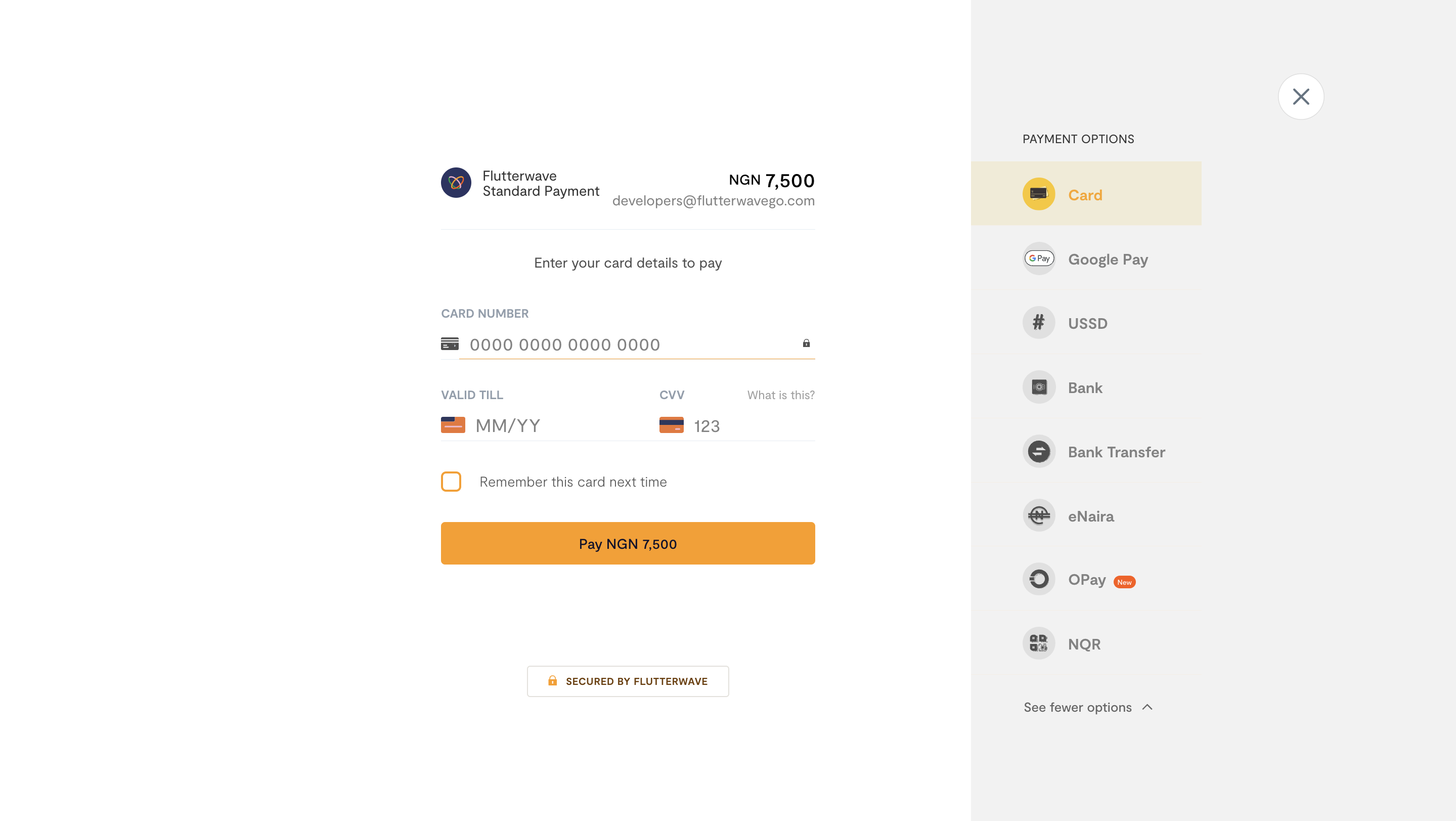
Redirect your customer to the link in data.link. Flutterwave shows the checkout page, and the customer pays there.
Confirm the payment
After a successful payment, four things happen:
- We'll redirect to your redirect_url with status, tx_ref, and transaction_id query parameters after payment is complete.
- We'll send you a webhook if you have that enabled. Learn more about webhooks.
- We'll send an email receipt to your customer if the payment was successful (unless you've disabled that).
- We'll send you an email notification (unless you've disabled that).
On your server, you should handle the redirect and always verify the final state of the transaction.
Here's what transaction verification could look like in a Node.js app with our backend SDK:
Javascript
app.get('/payment-callback', async (req, res) => {
    if (req.query.status === 'successful') {
        const transactionDetails = await Transaction.find({ref: req.query.tx_ref});
        const response = await flw.Transaction.verify({id: req.query.transaction_id});
        if (
            response.data.status === "successful"
            && response.data.amount === transactionDetails.amount
            && response.data.currency === "NGN") {
            // Success! Confirm the customer's payment
        } else {
            // Inform the customer their payment was unsuccessful
        }
    }
);
When a payment fails
If the payment attempt fails (for instance, due to insufficient funds), you don't need to do anything. We'll keep the payment page open, so the customer can try again until the payment succeeds or they choose to cancel, after which we'll redirect to the redirect_url with the query parameters tx_ref and a status of failed.
If you have webhooks enabled, we'll send you a notification for each failed payment attempt. This is useful in case you want to later reach out to customers who had issues paying. See our webhooks guide for an example.
Disable a payment link
Checkout links only
You can disable payment links created with Checkout. The endpoint returns 400 when the link is invalid.
Disable a link when a product or service is no longer available, so customers cannot pay for it.
Send the link in the body of a request to the disable payment link endpoint.
Javascript
curl --request POST \
--url 'https://api.flutterwave.com/v3/payments/link/disable' \
--header 'Authorization: Bearer {{YOUR_SECRET_KEY}}' \
--header 'Content-Type: application/json' \
--data '{
     "link": "https://checkout.flutterwave.com/v3/hosted/pay/flwlnk-01j8hkejppgm821xv8mfxfpgrb"
}'
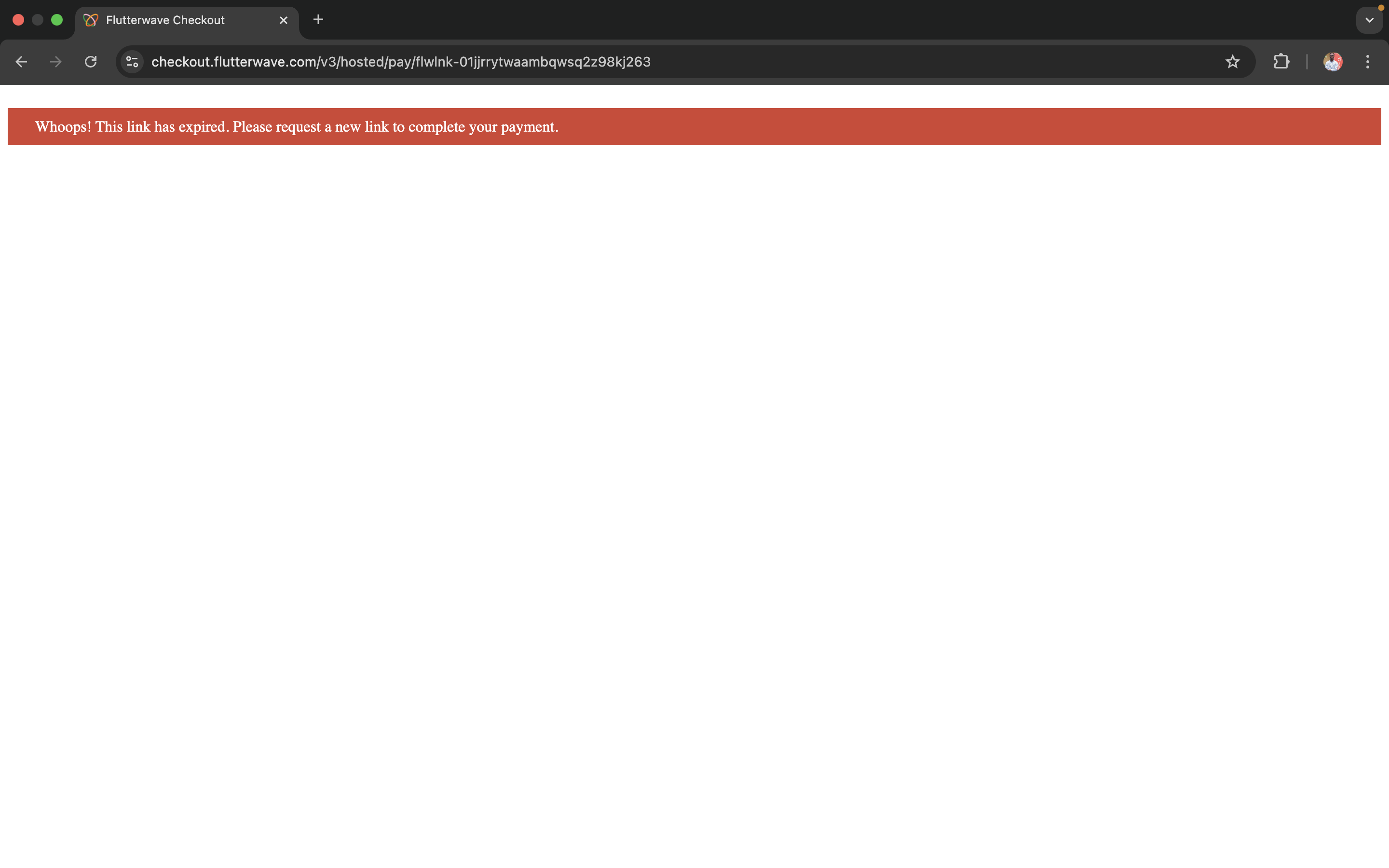
Once a payment link has been successfully disabled, users attempting to access the link in a browser will be unable to proceed and will be presented with the error screen below.
If you try to disable a link that is already disabled, we'll return an error informing you about the link status.
Javascript
{
    "status": "error",
    "message": "This payment link is currently inactive",
    "data": null
}
Limit how long checkout stays open
Set session_duration to limit how long the customer has to pay. When the time is up, Flutterwave closes the payment page, redirects the customer to redirect_url, and marks the unfinished transaction as failed.
Timeout can be set to a max value of 1440 minutes.
Additionally, you can limit the number of attempts that a user can make for failed transactions on checkout. By setting max_retry_attempt, the user is prevented from attempting transactions unnecessarily on checkout. When making a payment, the transaction would be cancelled and marked as failed once a user's attempts go beyond the maximum retries.
Using these configurations can help you improve security on checkout by limiting payment attempts of malicious users. For example, if timeout and retry for a transaction are set to 10 minutes and five (5) attempts, respectively. The transaction fails automatically if the user makes more than five attempts or spends more than 10 minutes completing the transaction.
Javascript
const axios = require('axios');

try {
	const response = await axios.post(
		'https://api.flutterwave.com/v3/payments',
		{
			tx_ref: 'UNIQUE_TRANSACTION_REFERENCE',
			amount: '7500',
			currency: 'NGN',
			redirect_url: 'https://example_company.com/success',
			customer: {
				email: '[email protected]',
				name: 'Flutterwave Developers',
				phonenumber: '09012345678',
			},
			customizations: {
				title: 'Flutterwave Standard Payment',
			},
			configurations: {
				session_duration: 10, // Session timeout in minutes (maxValue: 1440)
				max_retry_attempt: 5, // Max retry (int)
			},
		},
		{
			headers: {
				Authorization: `Bearer ${process.env.FLW_SECRET_KEY}`,
				'Content-Type': 'application/json',
			},
		}
	);
} catch (err) {
	console.error(err.code);
	console.error(err.response.data);
}