> AI agents: browse all pages at [http://flutterwave-developer-docs-v4-prod.f4b-flutterwave.com/llms.txt](http://flutterwave-developer-docs-v4-prod.f4b-flutterwave.com/llms.txt) or fetch them all at [http://flutterwave-developer-docs-v4-prod.f4b-flutterwave.com/llms-full.txt](http://flutterwave-developer-docs-v4-prod.f4b-flutterwave.com/llms-full.txt).
# Checksum
Hash the payment amount and customer details so they cannot be changed in the browser.
\
\
Last updated **13 September 2026**
-----------------------------------------------------
{% breadCrumbs %}
#### Introduction
When the customer pays from your frontend, include a `payload_hash` field. The hash is a SHA256 value of details that must not change, such as the amount. Flutterwave hashes the same details and compares the result with the value you sent.
{% callout "tip" %}
##### Where to send the hash
Pass `payload_hash` on [Inline](/docs/collections-inflow/inline), [Checkout](/docs/collections-inflow/flutterwave-standard), and [HTML Checkout](/docs/collections-inflow/html-checkout) requests.
{% /callout %}
To generate the hash, follow these steps:
1. Retrieve the transaction data (`amount`, `currency`, `customer_email`, and `tx_ref`).
2. Create a SHA256 value of your secret key.
3. Concatenate the values of your transaction data and your hashed secret key in this exact order, with no separators.
4. Generate a SHA256 hash of the concatenated string in step 3.
5. Add the generated hash from Step 4 to the `payload_hash` field of the checkout object, and then render the checkout page.
6. Prompt your user to complete the payment.
7. After completing the payment, [verify the transaction](/docs/transaction-verification) as you normally would before providing value to the user.
{% callout "tip" %}
##### Tip
When generating a hash, make sure to use a secure backend server that utilizes your secret key. Do not fetch the data from the request body of your HTTP request. Instead, fetch it from a secure datastore.
{% /callout %}
#### Request with payload hash
Below is an example of how to generate and send a `payload_hash` using NodeJs and Python.
{% tabs %}
{% tab id="Node.js" %}
```js
const getDataForHash = (reference_number) => {
// Retrieve data [customer_email, tx_ref, currency, amount] from your preferred data store using a reference number or identifier of your choice.
}
const hashedSecretKey = crypto.createHash("sha256").update(process.env.FLW_SEC_KEY, 'utf8').digest("hex");
const StringToBeHashed = amount + currency + customer_email + tx_ref + hashedSecretKey;
const payload_hash = crypto.createHash("sha256").update(StringToBeHashed, 'utf8').digest("hex");
console.log(payload_hash);
```
{% /tab %}
{% tab id="Python" %}
```python
import hashlib, os
from dotenv import load_dotenv
load_dotenv()
secretKey = os.getenv('SECRET_KEY')
publicKey = os.getenv('PUBLIC_KEY')
data = {
# enter your request payload here
}
def shaEncryption(input):
encoded_bytes = input.encode()
sha256 = hashlib.sha256()
sha256.update(encoded_bytes)
encryptedString = sha256.hexdigest()
return encryptedString
hashedSecretKey = shaEncryption(secretKey)
StringToBeHashed = str(data["amount"]) + data["currency"] + data["customer"]["email"] + data["tx_ref"] + hashedSecretKey
payload_hash = shaEncryption(StringToBeHashed)
print(payload_hash)
```
{% /tab %}
{% tab id="Full Request" %}
```html
```
{% /tab %}
{% /tabs %}
If any value in the payload is tampered with, causing it to be inconsistent with the generated hash, we will return an error message to the customer on the Flutterwave Checkout page once the payment is submitted.
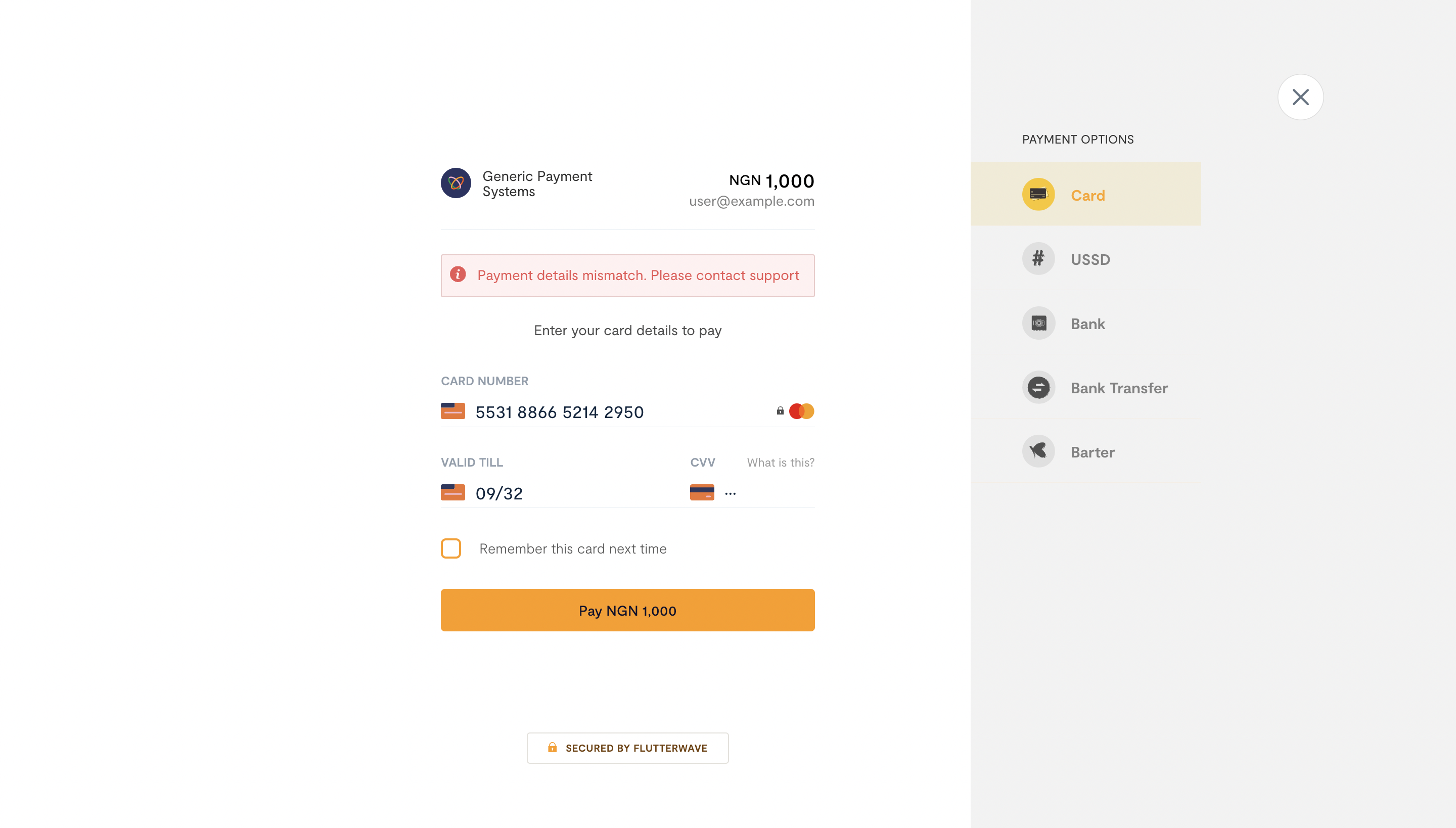
Before updating your customers' account value, make sure to verify the payment details by comparing the amount, currency, and reference on both receipts.
{% /breadCrumbs %}